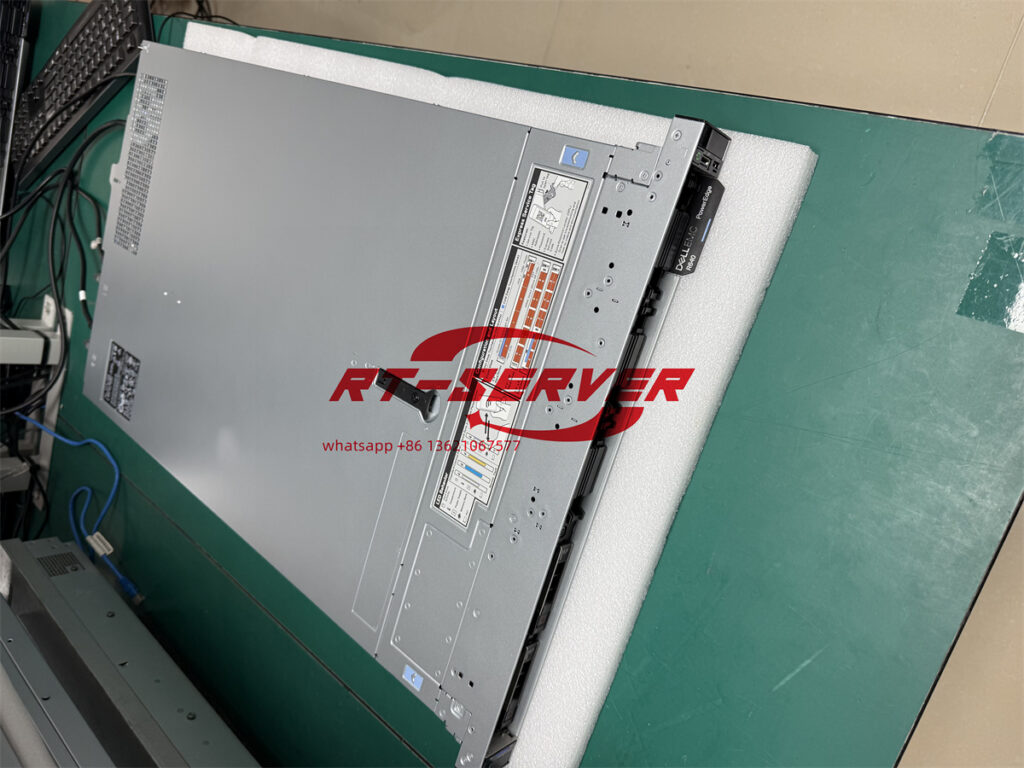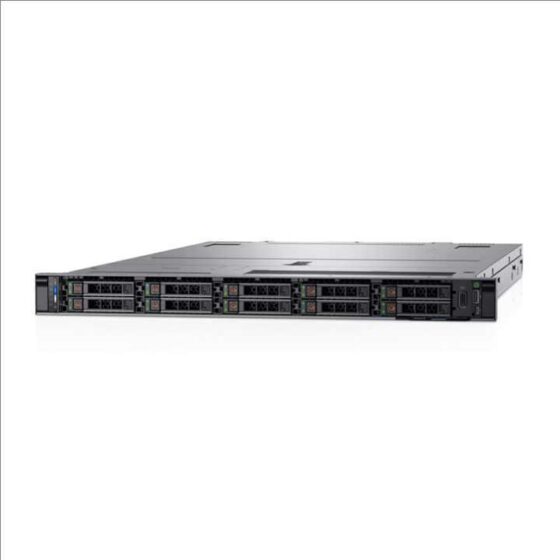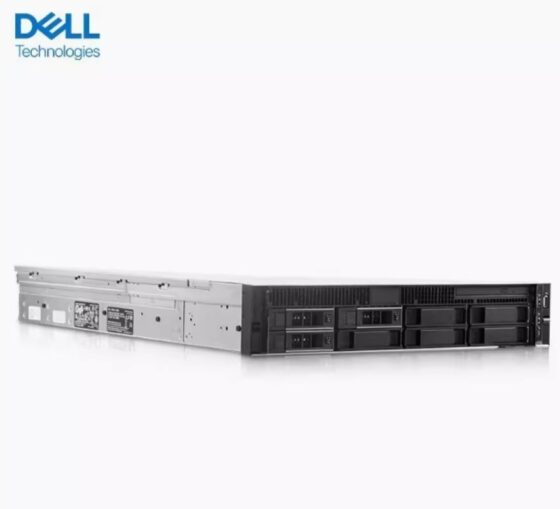
PowerEdge R6515 system overview
The PowerEdge R6515 system is a 1U server that supports:
- One AMD EPYC 7002 et 7003 series processor
- 16 Emplacements DIMM
- Two redundant AC power supply units
- Jusqu’à 4 x 3.5-inch, 8 x 2.5-inch SAS/SATA drives, 10 x 2.5-inch drives (with 8 SAS/SATA/ NVMe drives + 2 NVMe drives) or 10x 2.5-inch NVMe drives only.
Front view of the system
Figure 1. Front view of 4 x 3.5-inch drive system 
Table 1. Features available on the front of the system Item Ports, panels, and slots Icon Description 1 Left control panel N/A Contains the system health, system ID, status LED, and the iDRAC Quick Sync 2 (wireless) indicator. NOTE:The iDRAC Quick Sync 2 indicator is available only on certain configurations.- Status LED: Enables you to identify any failed hardware components. There are up to five status LEDs and an overall system health LED (Chassis health and system ID) bar. Pour plus d’informations, see the Status LED indicators section.
- Quick Sync 2 (wireless): Indicates a Quick Sync enabled system. The Quick Sync feature is optional. This feature allows management of the system by using mobile devices called as OpenManage Mobile (OMM) feature. Using iDRAC Quick Sync 2 with OpenManage Mobile (OMM) aggregates hardware or firmware inventory and various system level diagnostic and error information that can be used in troubleshooting the system. Pour plus d’informations, see the Integrated Dell Remote Access Controller User’s Guide available at https://www.dell.com/idracmanuals
2 Optical drive (optional) N/A One optional slim SATA DVD-ROM drive or DVD+/-RW drive. 3 VGA port 
Enables you to connect a display device to the system. 4 Right control panel N/A Contains the power button, USB port, iDRAC Direct micro port, and the iDRAC Direct status LED. 5 Information tag The Information tag is a slide-out label panel that contains system information such as Service Tag, NIC, MAC address, and so on. If you have opted for the secure default access to iDRAC, the Information tag also contains the iDRAC secure default password. 6 Conduire (4) N/A Enables you to install drives that are supported on your system. Figure 2. Front view of 8 x 2.5-inch drive system 
Table 2. Features available on the front of the system Item Ports, panels, and slots Icon Description 1 Left control panel N/A Contains the system health, system ID, status LED, and the iDRAC Quick Sync 2 (wireless) indicator. NOTE:The iDRAC Quick Sync 2 indicator is available only on certain configurations.- Status LED: Enables you to identify any failed hardware components. There are up to five status LEDs and an overall system health LED (Chassis health and system ID) bar. Pour plus d’informations, see the Status LED indicators section.
- Quick Sync 2 (wireless): Indicates a Quick Sync enabled system. The Quick Sync feature is optional. This feature allows management of the system by using mobile devices called as OpenManage Mobile (OMM) feature. Using iDRAC Quick Sync 2 with OpenManage Mobile (OMM) aggregates hardware or firmware inventory and various system level diagnostic and error information that can be used in troubleshooting the system. Pour plus d’informations, see the Integrated Dell Remote Access Controller User’s Guide available at https://www.dell.com/idracmanuals
2 Optical drive (optional) N/A One optional slim SATA DVD-ROM drive or DVD+/-RW drive. 3 VGA port 
Enables you to connect a display device to the system. 4 Right control panel N/A Contains the power button, USB port, iDRAC Direct micro port, and the iDRAC Direct status LED. 5 Information tag The Information tag is a slide-out label panel that contains system information such as Service Tag, NIC, MAC address, and so on. If you have opted for the secure default access to iDRAC, the Information tag also contains the iDRAC secure default password. 6 Conduire (8) N/A Enables you to install drives that are supported on your system. Figure 3. Front view of 10 x 2.5-inch drive system 
Table 3. Features available on the front of the system Item Ports, panels, and slots Icon Description 1 Left control panel N/A Contains the system health, system ID, status LED, and the iDRAC Quick Sync 2 (wireless) indicator. NOTE:The iDRAC Quick Sync 2 indicator is available only on certain configurations.- Status LED: Enables you to identify any failed hardware components. There are up to five status LEDs and an overall system health LED (Chassis health and system ID) bar. Pour plus d’informations, see the Status LED indicators section.
- Quick Sync 2 (wireless): Indicates a Quick Sync enabled system. The Quick Sync feature is optional. This feature allows management of the system by using mobile devices called as OpenManage Mobile (OMM) feature. Using iDRAC Quick Sync 2 with OpenManage Mobile (OMM) aggregates hardware or firmware inventory and various system level diagnostic and error information that can be used in troubleshooting the system. Pour plus d’informations, see the Integrated Dell Remote Access Controller User’s Guide available at https://www.dell.com/idracmanuals
2 VGA port 
Enables you to connect a display device to the system. 3 Right control panel N/A Contains the power button, USB port, iDRAC Direct micro port, and the iDRAC Direct status LED. 4 Information tag The Information tag is a slide-out label panel that contains system information such as Service Tag, NIC, MAC address, and so on. If you have opted for the secure default access to iDRAC, the Information tag also contains the iDRAC secure default password. 5 Conduire (10) N/A Enables you to install drives that are supported on your system. Pour plus d’informations, see the Dell EMCPowerEdgeR6515 Technical Specifications on the product documentation page.
Revendeurs de serveurs